USING CRM-REST BUILDER IN MSD 365

In MSD 365 there are only two ways to fetch data – Making Rest Calls or Using FetchXML. For example if we want lookup field value of one entity to be populated in another entity’s value so we can do it easily using REST API CALL.

Now writing the code to make REST API CALL by yourself is slightly tedious , so there is a tool named CRM REST BUILDER introduced that will generate the code for making REST API CALL for any entity and any field. Here’s the link to the same : https://github.com/jlattimer/CRMRESTBuilder

Download the file as it is from github and import the same file in the solutions section by clicking on import solution in Settings -> Solutions.

There are 2 scenarios where we can use REST BUILDER –

  1. To retrieve single record value
  2. To retrieve multiple record value

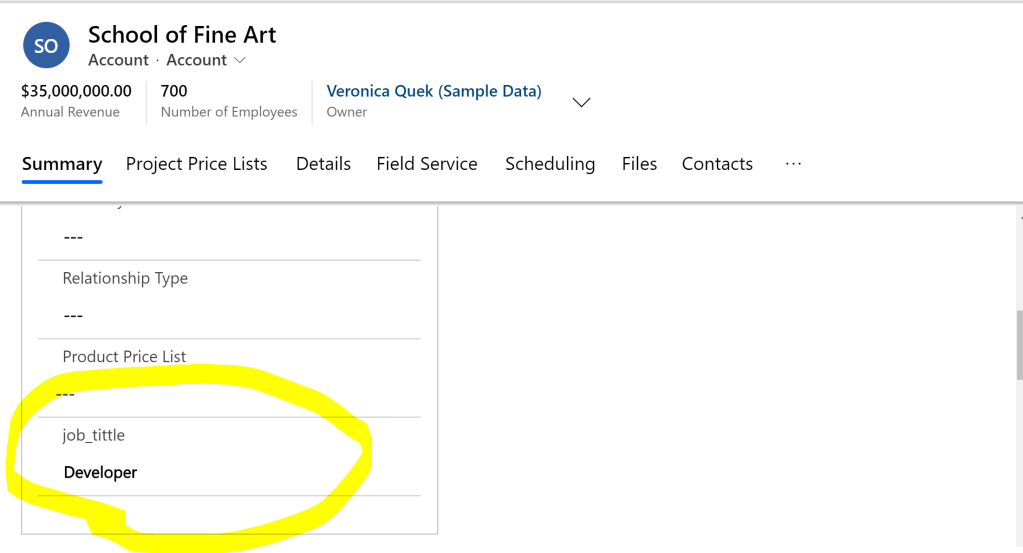
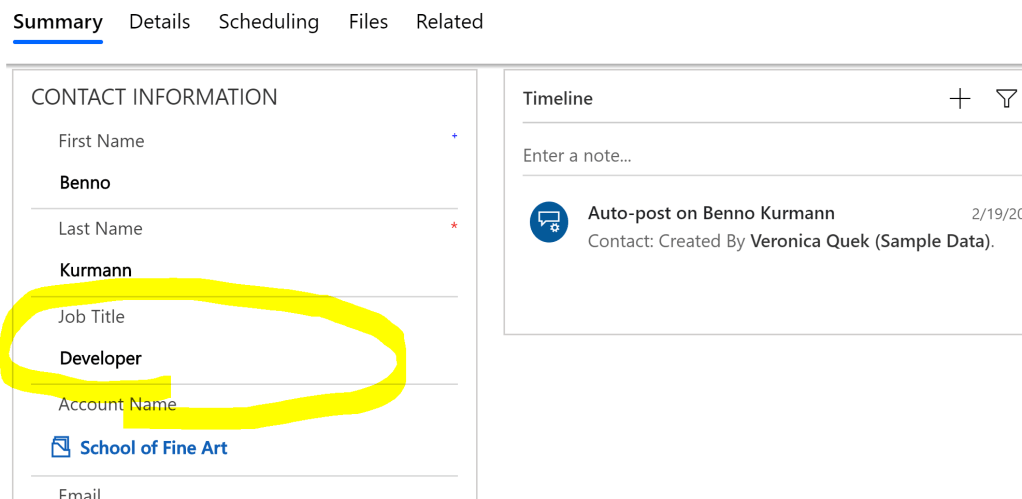
In the first scenario lets take an example where we want to populate a field named “Job_tittle” of a particular account entity with the value field named “Job_tittle”of a contact that is associated/linked with it. As you can see in the images below the following account has a field named “Job_tittle” and also the associated contact has a similar field with a value filled in it.

Account Entity Image

Contact Entity Image

We go to rest builder -> Since we want to retrieve a single record so we will click on “Retrieve Single” and we will select “Synchronous” mode. Difference between synchronous and asynchronous mode is that when a synchronous call is made then after a rest call is made then Entire system will halt until the call is completed and in asynchronous the functionality to be implemented happens to run in background. So as you can see in the below code , we have added the GUID (39a4e5b9-88df-e311-b8e5-6c3be5a8b200)of the contact record in the statement “req.open(“GET”, Xrm.Page.context.getClientUrl() + “/api/data/v9.1/contacts(39a4e5b9-88df-e311-b8e5-6c3be5a8b200)?$select=jobtitle”, false);” and also we have added a statement to update the field value in the innermost if part ie. “formcontext.getAttribute(“new_job_tittle”).setValue(jobtitle);

function abc(executionContext)
{
var formcontext = executionContext.getFormContext();
var req = new XMLHttpRequest();
req.open("GET", Xrm.Page.context.getClientUrl() + "/api/data/v9.1/contacts(39a4e5b9-88df-e311-b8e5-6c3be5a8b200)?$select=jobtitle", false); //
req.setRequestHeader("OData-MaxVersion", "4.0");
req.setRequestHeader("OData-Version", "4.0");
req.setRequestHeader("Accept", "application/json");
req.setRequestHeader("Content-Type", "application/json; charset=utf-8");
req.setRequestHeader("Prefer", "odata.include-annotations=\"*\"");
req.onreadystatechange = function() {
    if (this.readyState === 4) {
        req.onreadystatechange = null;
        if (this.status === 200) {
            var result = JSON.parse(this.response);
            var jobtitle = result["jobtitle"];
            formcontext.getAttribute("new_job_tittle").setValue(jobtitle); //

        } else {
            Xrm.Utility.alertDialog(this.statusText);
        }
    }
};
req.send();

Now we have accordingly add the javascript file in web resources of CRM and called this function abc() on load of the form. Now as soon as you open the account page then you see the job title field is populated.

Account Entity Image

You can similarly manipulate any field value by it by writing whatever logic you want.

Introduce Yourself (Example Post)

This is an example post, originally published as part of Blogging University. Enroll in one of our ten programs, and start your blog right.

You’re going to publish a post today. Don’t worry about how your blog looks. Don’t worry if you haven’t given it a name yet, or you’re feeling overwhelmed. Just click the “New Post” button, and tell us why you’re here.

Why do this?

  • Because it gives new readers context. What are you about? Why should they read your blog?
  • Because it will help you focus you own ideas about your blog and what you’d like to do with it.

The post can be short or long, a personal intro to your life or a bloggy mission statement, a manifesto for the future or a simple outline of your the types of things you hope to publish.

To help you get started, here are a few questions:

  • Why are you blogging publicly, rather than keeping a personal journal?
  • What topics do you think you’ll write about?
  • Who would you love to connect with via your blog?
  • If you blog successfully throughout the next year, what would you hope to have accomplished?

You’re not locked into any of this; one of the wonderful things about blogs is how they constantly evolve as we learn, grow, and interact with one another — but it’s good to know where and why you started, and articulating your goals may just give you a few other post ideas.

Can’t think how to get started? Just write the first thing that pops into your head. Anne Lamott, author of a book on writing we love, says that you need to give yourself permission to write a “crappy first draft”. Anne makes a great point — just start writing, and worry about editing it later.

When you’re ready to publish, give your post three to five tags that describe your blog’s focus — writing, photography, fiction, parenting, food, cars, movies, sports, whatever. These tags will help others who care about your topics find you in the Reader. Make sure one of the tags is “zerotohero,” so other new bloggers can find you, too.

Design a site like this with WordPress.com
Get started